Guide
How to edit a long stream into a YouTube video
A three-hour stream holds a good ten-minute video. Here is how editors find it — by hand or with an AI editor doing the first cut — from the recording to the upload.
Updated
First, decide what the video is
One stream can become several videos, and each is edited differently. Pick one before you start cutting:
- The night as a story: what happened tonight, with a beginning, a climax and an ending. Usually 8 to 20 minutes from a 2-to-6-hour stream
- Highlights or funny moments: the best bits, each standing on its own, ordered for rhythm
- A ranked climb or a challenge: told match by match or attempt by attempt, with what is at stake kept clear
- Shorts: single moments of 20 to 60 seconds, vertical, captioned, with the hook in the first two seconds
1. Get the best recording you have
Your own local recording (from OBS or your streaming software) is the best source: full quality, and nothing muted. Otherwise download the VOD from your channel; Twitch deletes past broadcasts after a while, so download the ones you want to edit soon.
If you streamed with friends, ask for their recordings of the session too: their side of a fight makes a good cutaway.
2. Map the stream before you cut
Most of a stream is the same few parts: starting soon, just chatting, the activity itself (queue, load, play, result, again), breaks, and the sign-off. Find where the matches or the main events are first, then read those closely.
Note the setups as you go. The goal said in just chatting (“I’m not ending until I hit Diamond”), a bet with chat, a running joke: each is a promise the video has to pay off.
3. Cut what a viewer who wasn’t there doesn’t need
- Starting-soon, BRB and ad-break screens
- Queues, lobbies, loading and character select (unless the pick is the joke)
- Technical trouble: “can you hear me?”, crashes, a broken overlay
- Reading chat with nothing happening, and alert spam
- Anything that shows personal information: a real name, an address, a private message, a desktop notification
4. Find the story and cut each moment tight
Choose the moments that carry the story from setup to payoff, and give each one a reason to be there. Then tighten it: start just before the cause (the enemy appearing, the plan being said), end after the reaction lands or on the punchline, and cut the walking, waiting and repeated lines inside it. A minute of footage usually makes twenty to forty seconds of edit.
Chat going wild is a clue, not proof: a moment that needed three hours of context won’t land for someone who just arrived. Keep what stands on its own, or add the line of context it needs.
5. Open on the hook, not the greeting
The first seconds decide whether anyone keeps watching. Open on the most intriguing moment or the stakes of the night, and save the best payoff for the end.
6. Make it readable
Chat is unreadable in a YouTube video, so a moment that depends on a message needs the streamer reading it aloud, or a caption. Caption key lines a teammate mumbled, add a line of context for a prediction or a raid, and keep titles and captions off the facecam and the alert box. Cut to the facecam when the face is the moment, and stay on the game while the play happens.
7. Check the music before you upload
Music playing in your stream’s audio can get the video claimed or muted on YouTube, and stretches Twitch muted for copyrighted music play as dead air. Long runs of somebody else’s video you reacted to are a copyright risk too: keep only what causes your reaction.
The faster way: let an AI editor make the first cut
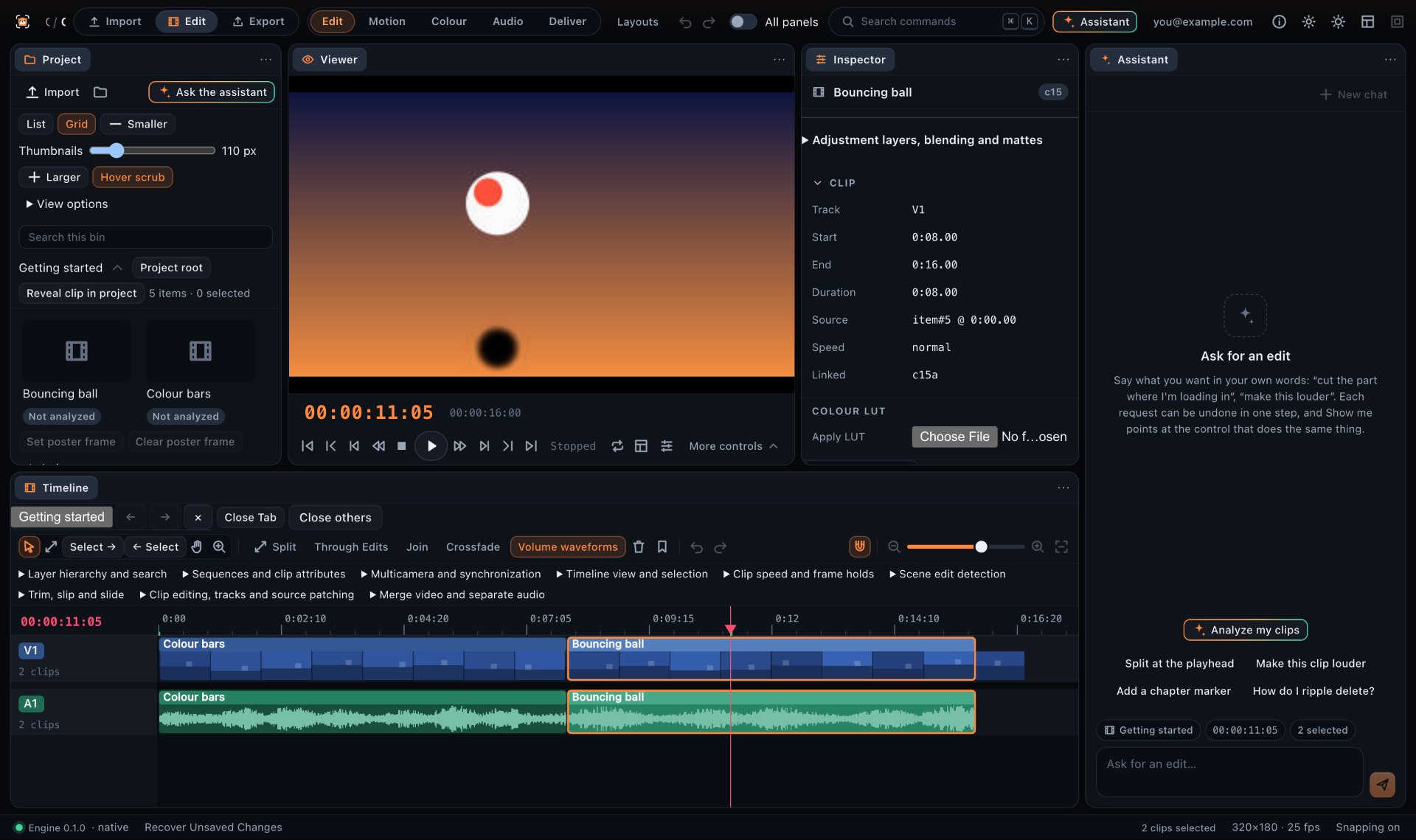
Each step above is how Frameotter’s assistant edits a stream. Import the recording, ask for the video, and it maps the stream, cuts the dead time, picks the moments with a reason for each, builds the edit on a real timeline, reviews its own cut and tells you what it kept and why. You check it, change what you disagree with, and export.
Questions
How do I edit a Twitch VOD into a YouTube video?
Get the recording (your local OBS file, or the VOD downloaded from your channel), decide what the video is, cut the starting-soon screens, queues and breaks, choose the moments that tell the night’s story, open on a hook, caption what chat or quiet teammates said, and check the stream’s music for claims. An AI editor such as Frameotter can do this first cut for you on a timeline you can change.
How long should a YouTube video made from a stream be?
A video telling the story of a stream usually runs 8 to 20 minutes from a 2-to-6-hour broadcast: long enough for the night’s arc, short enough that every minute has something in it. Highlights and funny-moments videos often run 5 to 15 minutes, and Shorts 20 to 60 seconds.
Can AI edit long-form videos from streams?
Yes. Frameotter reads the whole recording — transcript, speakers, sounds and what is on screen — and edits a long-form video with a structure, not just a set of clips, on a multi-track timeline you can change.
Should I use my local recording or the Twitch VOD?
Your local recording, when you have one: it is full quality and nothing in it is muted. Twitch VODs can have sections muted for copyrighted music, and past broadcasts are deleted after a while.