Stream to video
Turn your stream into a finished YouTube video
Frameotter reads the whole recording of your stream — every line, every fight, every result screen — and makes the edit: the night’s best moments in order, the waiting cut out, captions and titles where they help. Then it’s yours to change on a real timeline.
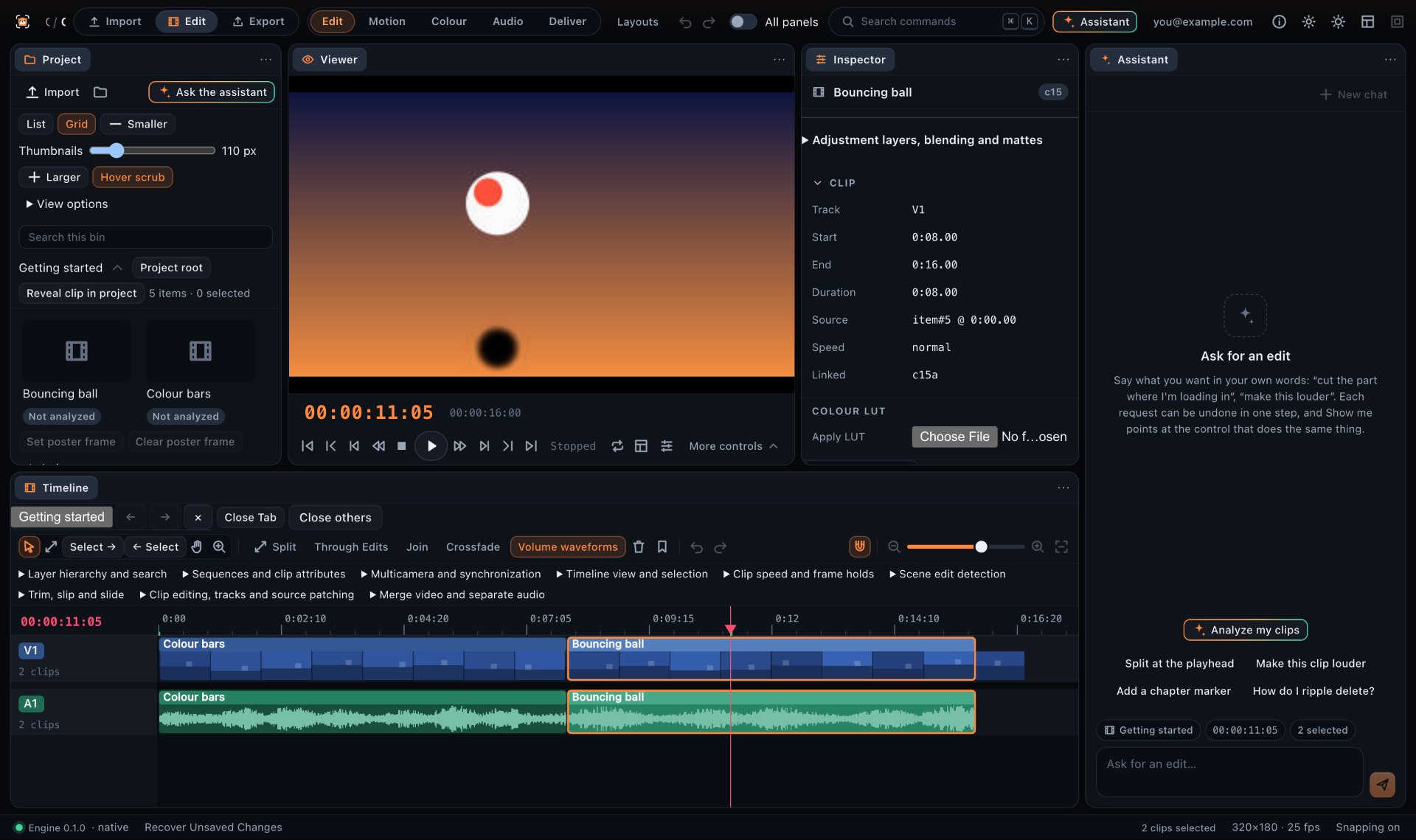
From a three-hour VOD to a video people finish
A stream is a live hang-out: most of it is queues, loading screens and chat that the people watching live enjoyed because they were there. Someone finding it on YouTube later wasn’t, and wants the version worth their time. Making that version by hand means scrubbing through hours of footage for a few minutes worth keeping.
In Frameotter you drop the recording in and ask for the video — “a twelve-minute video of tonight’s ranked climb”, “the funniest moments with the squad”. The assistant reads the whole stream, picks the moments with a reason for each, builds the edit, reviews its own cut and fixes what it finds, then tells you what it kept and why.
What it reads in a stream
Clip analysis turns the recording into something the assistant can read like a log:
- Every word, transcribed, with who said it: you, the friends in your call, a co-streamer
- Sound: gunfire, explosions, laughter, screams, a sudden silence
- What is on screen: gameplay, menus, loading, the result and rank screens with their numbers
- Where your facecam, alerts and chat box sit, so captions and graphics stay off them
- The parts of a stream: starting soon, just chatting, the matches, breaks, the raid out
What it cuts, and what it keeps
It cuts what a viewer who wasn’t there doesn’t need: starting-soon and BRB screens, ad breaks, queues and lobbies, loading, technical trouble, reading chat with nothing happening, and anything that shows personal information on stream.
It keeps the story of the night. The goal you set in just chatting and the match where it happens. The clutch, the reaction, the banter in the call, the result screen. An inside joke from your community gets its setup in the edit, or it doesn’t go in.
It knows the problems stream recordings have
Stream VODs are their own kind of footage, and the assistant is written for them:
- Sections Twitch muted for copyrighted music play as dead air, so it doesn’t keep them
- Music in your stream’s audio can get a YouTube video claimed; it tells you where it runs
- Alerts and TTS messages stay only when the message or your reaction is the joke
- Raids, predictions and channel-point redemptions get a line of context when they matter
- Several streamers’ VODs of the same session are lined up, so the edit can cut between POVs
One stream, several videos
The same analysed stream makes the long video for your channel, a highlights cut, and vertical shorts for YouTube Shorts, TikTok and Reels — your facecam stacked over the gameplay, every word captioned as it is said. Each is its own edit on its own timeline.
Your recording stays on your computer
Frameotter edits the files on your computer: your own recording from OBS, or a VOD you’ve downloaded. Your video is never uploaded. For clip analysis it sends compressed audio and small, low-resolution frames, which are deleted after 24 hours — so a three-hour stream doesn’t mean a multi-gigabyte upload before anything happens.
Questions
Can Frameotter turn a Twitch stream into a YouTube video?
Yes. Import the recording of the stream, let Frameotter analyse it, and ask for the video you want. The assistant reads the whole VOD, picks the moments, and builds the edit on a timeline: cuts, captions, titles and effects you can change, then export.
Does it work with YouTube Live and Kick streams too?
Yes. It edits any recording of a stream, and the assistant knows the conventions of Twitch, YouTube Live and Kick streams: alerts, chat, raids, co-streamers and stream screens.
Do I have to upload my VOD?
No. The video stays on your computer. Clip analysis uploads compressed audio and small, low-resolution frames, deleted after 24 hours. You import the recording as a file: your local OBS recording, or a VOD you’ve downloaded from your channel.
How long can the stream be?
Long recordings are what it is built for: a two-to-six-hour stream told as an eight-to-twenty-minute video is its everyday job, and three-hour streams are part of how its edits are tested.
Can I change what the AI made?
Yes. Every change it makes is an ordinary edit on the timeline, and Undo undoes it. Move a cut, swap a moment, change the titles or the pacing, or ask the assistant for the change in words.
Can it make Shorts and TikToks from the same stream?
Yes. Ask for vertical shorts and it makes 9:16 clips of single moments: the facecam stacked over the gameplay, every word captioned and highlighted as it is said, and the hook in the first seconds.